

Visiting Cards with QR Codes: The Modern Way to Share Contact Details (2026)
Add a QR code to your visiting card and save your contact details in one scan. Free generator, WhatsApp links, and dynamic codes explained.
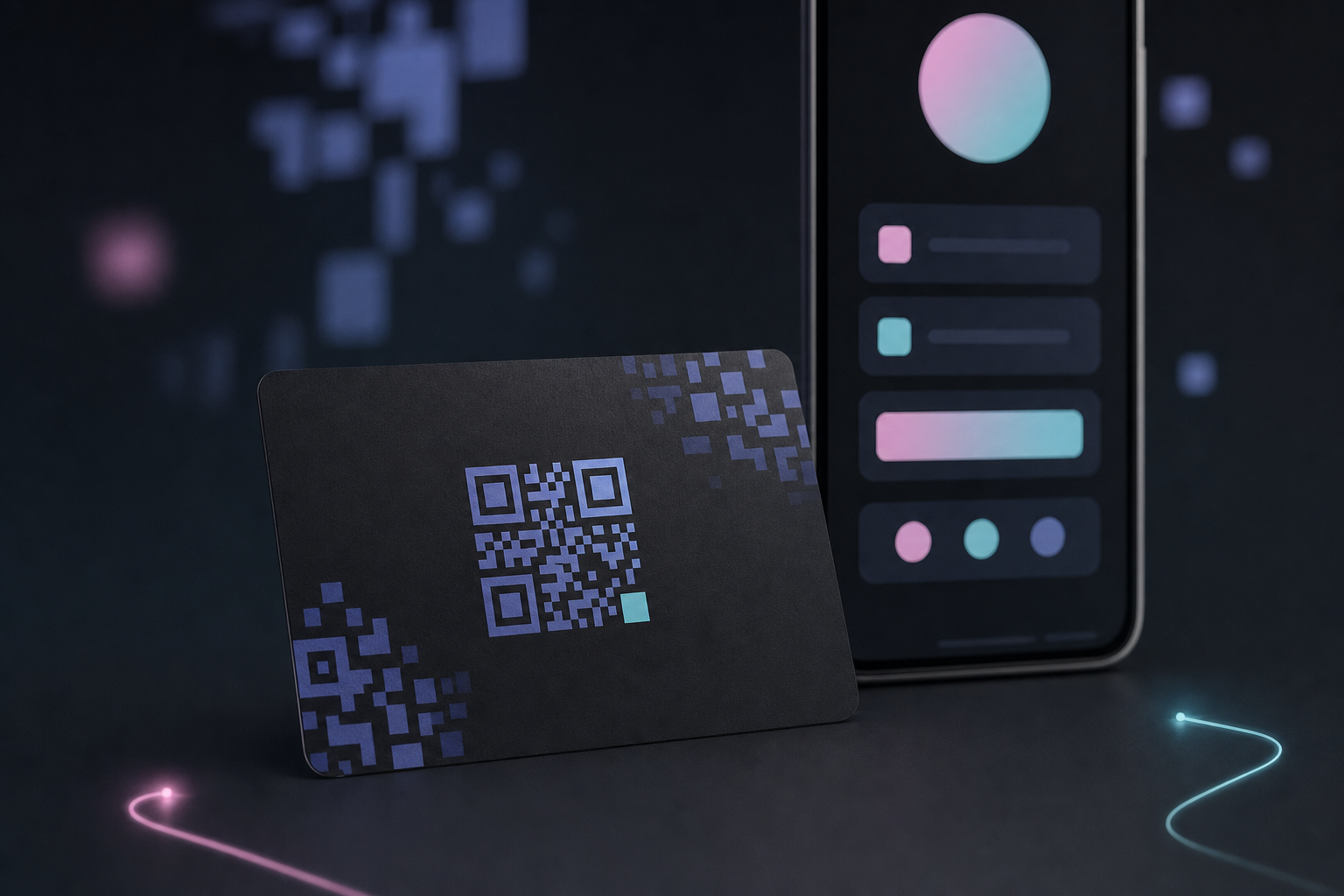
In India, Pakistan, Bangladesh, and across much of South Asia, the business card is called a visiting card. The term is the same concept by a different name, a small printed card that introduces you and gives someone a way to get back in touch. The challenge has always been the same too: people rarely type details from a small card into their phone.
A QR code on a visiting card solves that. One scan and your number is saved, your WhatsApp opens, or your portfolio loads. No typing. No transcription errors.
This guide covers how to add a QR code to your visiting card, what to link it to, and how to create one free.
What is the Difference Between a Visiting Card and a Business Card?
Nothing, practically speaking. "Visiting card" is the standard term in South Asia and parts of Southeast Asia and the Middle East. "Business card" is more common in the United States, the UK, and Europe. They refer to the same physical item. The same QR code techniques apply regardless of what you call the card.
Why Add a QR Code to Your Visiting Card?
A visiting card with a QR code bridges your printed identity to your digital presence. Here is why it matters:
Contact saving without typing. When someone scans a vCard QR code on your card, your name, phone number, email, company, and website save directly into their contacts. No one has to type anything. This is the single most useful thing a QR code can do on a visiting card.
Instant WhatsApp access. WhatsApp is the dominant professional messaging platform across South Asia. A QR code that opens a WhatsApp chat with your number pre-filled turns a card into a direct line of communication.
Your portfolio, on demand. Freelancers, designers, photographers, and consultants can link to their work. Instead of describing your services in a few words on card stock, the code takes people straight to the proof.
A modern first impression. A QR code signals that you are current and efficient. It also demonstrates that you respect the other person's time, because saving your details is one tap instead of thirty seconds of typing.
What to Link Your Visiting Card QR Code To
Choose one destination and make it the obvious right choice:
Contact details / vCard -- The most universally useful option. Your full contact information saves to the scanner's phone in one tap. Ideal for anyone whose primary goal is to be reachable.
WhatsApp -- If you communicate primarily via WhatsApp, a wa.me link that pre-fills your number makes starting a conversation effortless. Popular choice for traders, agents, and service providers across South Asia.
Portfolio or website -- If your work speaks louder than your title, link there. Architects, photographers, web developers, and creative professionals benefit most from this option.
LinkedIn profile -- For corporate professionals, consultants, and those in B2B roles where LinkedIn is an active channel.
Pick one. A QR code that does one thing clearly is more useful than one that leads to a cluttered landing page.
How to Create a QR Code for Your Visiting Card (3 Steps)
Step 1: Go to QRhubly
Open QRhubly's visiting card QR code page on your phone or computer. No account needed for a basic static code.
Step 2: Enter your destination
Select the type of code you want to create. For a vCard, fill in your contact details. For a URL (WhatsApp, portfolio, LinkedIn), paste in the link. The generator converts it instantly.
Step 3: Download the file
Download as PNG for digital use or SVG for print. SVG scales without blurring, which matters when you hand the file to a printing shop. Send the file directly to your printer or drop it into your card design.
The entire process takes less than two minutes.
Dynamic QR Codes: Change the Link Without Reprinting
A standard (static) QR code has the destination encoded directly into the pattern. If your website changes, your number changes, or you want to point to something different, the code is wrong. You need to reprint.
A dynamic QR code works differently. The pattern points to a short redirect URL that you control through a dashboard. You can update the destination at any time without touching the printed card. If you order 500 visiting cards, a dynamic code protects that investment. One link update and all 500 cards point to the new destination automatically.
Dynamic codes also give you scan analytics: how many times the code was scanned, from which city or country, and on what day. Useful for understanding whether your visiting cards are actually converting.
Frequently Asked Questions
What is a visiting card with QR code?
A visiting card with a QR code is a standard printed card that includes a scannable QR pattern, typically on the back. When someone scans the code with their smartphone camera, it opens a link, saves contact details, or starts a WhatsApp conversation, depending on how the code was set up. The QR code turns the card from a passive piece of paper into a one-tap action.
How do I scan a QR code on a visiting card?
On any modern iPhone (iOS 11 and later) or Android phone (Android 9 and later), open the camera app and point it at the QR code. The phone will display a notification with the link or action. Tap the notification to open it. No app is needed on most current phones. If your camera does not recognise it, try Google Lens, which works on any Android device.
Can I get a free QR code for my visiting card?
Yes. QRhubly generates basic static QR codes for free with no account required. If you want a dynamic QR code that you can update after printing and that tracks scan data, you will need to create a free account. The free plan covers basic usage.
Create Your Visiting Card QR Code Now
Head to QRhubly's visiting card QR code generator and create your code in under two minutes. Free, no account needed for a static code.
If you want to update the destination after printing or see how many times your card has been scanned, create a free account and use a dynamic QR code instead.
See also: If you are searching for business cards with QR codes (the same thing by its Western name), see our detailed guide: How to Put a QR Code on Your Business Card (Free, 2026).
Related guides
Make a QR code you can edit and track
Create dynamic QR codes, change the destination anytime, and see every scan. Free to start, no card.