

How to Put a QR Code on Your Business Card (Free, 2026)
Learn how to add a QR code to your business card for free. Link to your contacts, portfolio, or booking page. Includes static vs dynamic QR code guide.
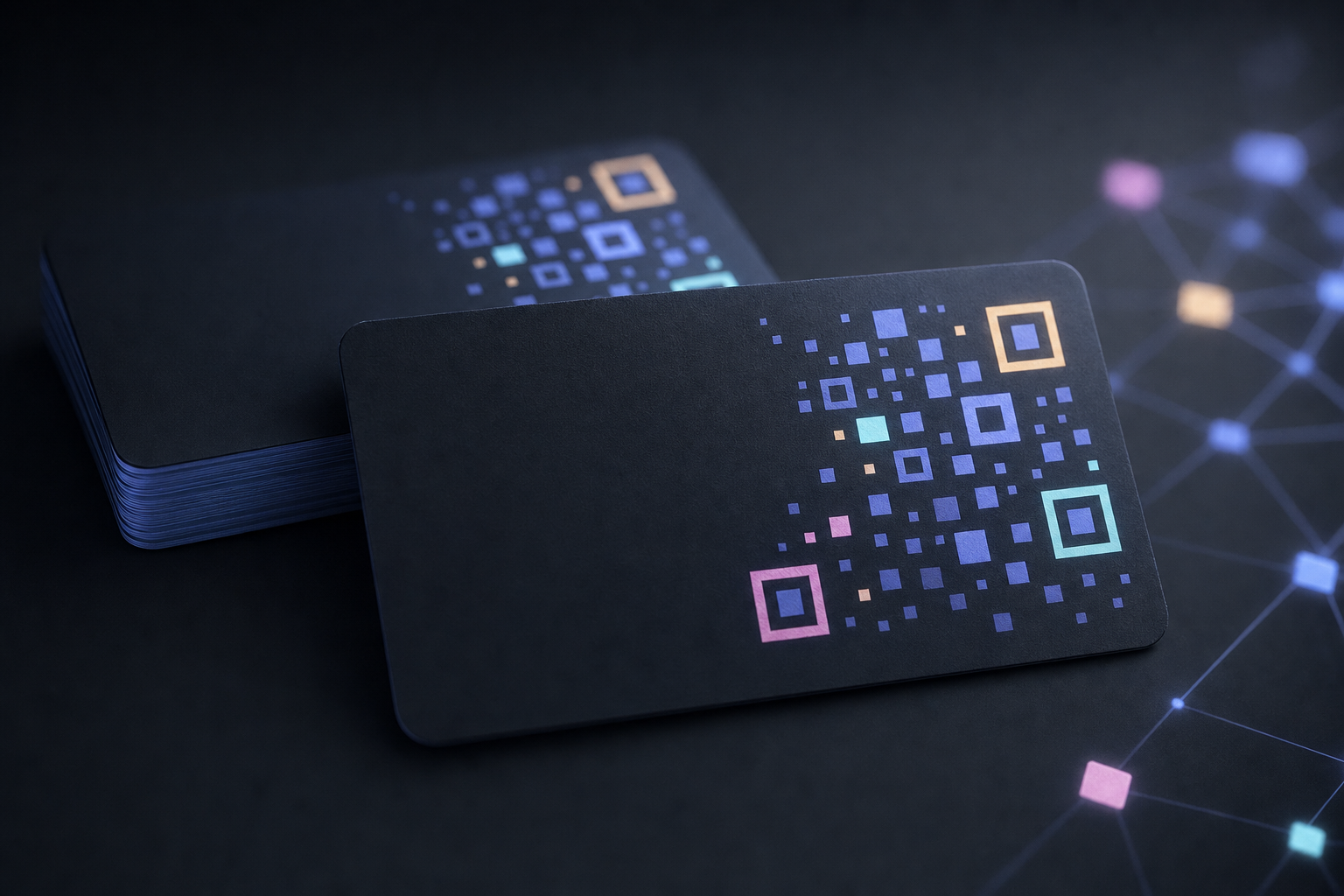
Business cards still matter. After a meeting, a handshake, or a chance conversation, handing someone a card is still one of the fastest ways to exchange contact information. The problem? Nobody types URLs or phone numbers from a tiny card. They pocket it, forget it, or lose it.
A QR code changes that. One scan and your contact is saved, your portfolio is open, or your booking page is right in front of them. No typing. No friction.
This guide walks through exactly how to put a QR code on your business card, what to link it to, and how to avoid the mistakes that make codes fail.
Why QR Codes Work on Business Cards
Traditional business cards are passive. They sit in a wallet or drawer and wait. A card with a QR code gives people a reason to pick it up and act.
Here is what a QR code actually does for you:
- 1-tap contact save. Instead of manually typing your name, number, and email into a phone, scanning a vCard QR code saves all your contact details in one tap. This alone is worth adding a code.
- Bridges print and digital. Your card is limited to a few square centimetres of text. Your QR code can lead anywhere.
- Measurable. A dynamic QR code shows you how many times it was scanned and from where.
Research consistently shows that response rates on printed materials are higher when a clear digital action is attached. A QR code is that action.
What Should the QR Code on Your Business Card Link To?
This is where most people overthink it. Here are the most practical options:
vCard / contact details -- Scanning saves your name, phone, email, company, and website straight into someone's contacts. This is the most useful option for most people because it eliminates manual data entry entirely.
LinkedIn profile -- Good for recruiters, consultants, and anyone in B2B who wants to connect professionally. LinkedIn's built-in messaging makes follow-ups easier.
Portfolio or website -- Designers, photographers, developers, and freelancers often benefit more from linking directly to their work than to a generic contact form.
Booking or scheduling page -- If you sell time (coaching, consulting, appointments, services), linking to a Calendly or booking page turns a card into a direct conversion tool.
WhatsApp -- Common in markets where WhatsApp is the primary business communication channel. A WhatsApp link opens a chat with your number pre-filled.
Pick one. A QR code that does one thing clearly is better than one that links to a landing page with five different options.
How to Create a QR Code for Your Business Card (3 Steps)
Step 1: Go to QRhubly
Head to QRhubly's business card QR code generator. No account required for a basic static code. If you want a dynamic code (more on this below), you will need to sign up, which takes about 30 seconds.
Step 2: Enter your destination
Choose what you want the code to link to. For a vCard, enter your contact details directly. For a URL, paste in your link. The generator handles the encoding automatically.
Step 3: Download and export
Download your QR code as a PNG or SVG. SVG is preferable for print because it scales without losing sharpness. Hand the file to your card designer or drop it directly into your design tool.
That is it. The whole process takes under two minutes.
Static vs Dynamic QR Codes: Which Should You Use?
A static QR code encodes the destination directly into the pattern. Once it is printed, it cannot be changed. If you update your website URL, move your portfolio, or change your phone number, the old code is permanently wrong. You will need to reprint.
A dynamic QR code works differently. The code points to a redirect URL that you control. You can change where it goes at any time without reprinting a single card. This is the smarter option for anyone who might update their links, change jobs, or simply wants scan analytics.
If you are printing 50 cards and you know exactly where they will point forever, static is fine. If you are printing 500 cards or you have any doubt about future links, use dynamic.
Placement Tips for Business Card QR Codes
A QR code that people do not notice or cannot scan is useless. A few practical rules:
Put it on the back of the card. The front is for your name, title, and branding. The back is where the code belongs. It gives it space to breathe and does not compete visually with your identity.
Minimum 2 x 2 cm (about 0.8 x 0.8 inches). Smaller than this and phone cameras struggle, especially in low light. 2.5 x 2.5 cm is safer.
High contrast. Dark code on a light background. Never white code on a pale background. Never print it on a heavily textured or glossy surface without testing first.
Add a label. A small line of text beneath the code -- "Scan to connect" or "Scan to save contact" -- tells people what happens when they scan. Without it, many people simply will not try.
Test the printed card. Print one copy before ordering a full batch. Scan it with multiple phones. This catches colour profile issues that sometimes make codes unreadable in print even when they look fine on screen.
Frequently Asked Questions
Do QR codes on business cards look professional?
Yes, when they are well-placed and clearly purposed. A clean QR code in the corner of the card back, with a small "Scan to connect" label, reads as modern and practical. What looks unprofessional is a code that is too small, low-contrast, or leads to a generic homepage with no obvious next step.
What should a QR code on a business card link to?
For most professionals, a vCard that saves contact details directly to a phone is the most useful destination. It removes the friction of manual entry and ensures your details are saved accurately. For freelancers and creatives, a portfolio link often performs better. If you book appointments, link to your scheduling page.
Can I change where the QR code goes after printing?
Only if you used a dynamic QR code. A static code has the destination baked into the pattern, so it cannot be updated after printing. A dynamic code from QRhubly points to a redirect you control -- change the destination in your dashboard whenever you need to, without touching the code itself.
Ready to Create Yours?
Make a business card QR code on QRhubly -- free, no account required for a basic code. If you want analytics and the ability to update your link after printing, sign up for free to create a dynamic QR code.
See also: If you are looking for information about visiting cards with QR codes (common in South Asia and other regions), see our guide: Visiting Cards with QR Codes: The Modern Way to Share Contact Details.
Related guides
Make a QR code you can edit and track
Create dynamic QR codes, change the destination anytime, and see every scan. Free to start, no card.